แสดงภาพ circuit timing
เวอร์ชันแพ็กเกจ
โค้ดในหน้านี้พัฒนาโดยใช้ requirements ต่อไปนี้ แนะนำให้ใช้เวอร์ชันเหล่านี้หรือใหม่กว่า
qiskit[all]~=2.5.2
qiskit-ibm-runtime~=0.47.0
แม้ว่า timeline drawer ที่ built in ใน Qiskit จะมีประโยชน์สำหรับ static circuits แต่อาจไม่สะท้อน timing ที่แม่นยำของ dynamic circuits เนื่องจาก implicit operations เช่น broadcasting และ branch determination ในส่วนของการรองรับ dynamic circuits IBM Quantum Compute Service ส่งคืนข้อมูล circuit timing ที่แม่นยำภายในผลลัพธ์ job เมื่อมีการร้องขอ
- นี่เป็นฟังก์ชันทดลอง อยู่ในสถานะ preview release และอาจมีการเปลี่ยนแปลง
- ฟังก์ชันนี้ใช้ได้เฉพาะกับ IBM Quantum Sampler jobs เท่านั้น
- แม้ว่าเวลา circuit ทั้งหมดจะถูกส่งคืนใน "compilation" metadata แต่นี่ไม่ใช่เวลาที่ใช้สำหรับการเรียกเก็บเงิน (QPU time)
เปิดใช้งานการดึงข้อมูล timing
เพื่อเปิดใช้งานการดึงข้อมูล timing ให้ตั้งค่า experimental flag scheduler_timing เป็น True เมื่อรัน primitive job
# Added by doQumentation — installs the packages this notebook needs if they are missing
import importlib.util

_needed = {"qiskit": "qiskit", "qiskit_ibm_runtime": "qiskit-ibm-runtime"}
_missing = [pip for module, pip in _needed.items()
            if importlib.util.find_spec(module) is None]
# One at a time, so a package that fails to install does not block the others
for _pip in _missing:
    %pip install -q {_pip}
if not _missing:
    print("\u2713 All required packages are installed")
from qiskit import QuantumCircuit
from qiskit_ibm_runtime import QiskitRuntimeService, SamplerV2
from qiskit.transpiler import generate_preset_pass_manager

service = QiskitRuntimeService()
backend = service.least_busy(operational=True, simulator=False)

qc = QuantumCircuit(2)
qc.h(0)
qc.cx(0, 1)
qc.measure_all()

pm = generate_preset_pass_manager(backend=backend, optimization_level=1)
isa_circuit = pm.run(qc)

sampler = SamplerV2(backend)
sampler.options.experimental = {
    "execution": {
        "scheduler_timing": True,
    },
}

sampler_job = sampler.run([isa_circuit])
result = sampler_job.result()
เข้าถึงข้อมูล circuit timing
เมื่อมีการร้องขอ ข้อมูล circuit timing สำหรับแต่ละ PUB จะถูกส่งคืนใน job result metadata ภายใต้ ["compilation"]["scheduler_timing"]["timing"] field นี้มีข้อมูล timing ดิบ เพื่อแสดงข้อมูล timing ให้ใช้เครื่องมือแสดงภาพในตัวตามที่อธิบายในส่วน แสดงภาพ timings
ใช้โค้ดต่อไปนี้เพื่อเข้าถึงข้อมูล circuit timing สำหรับ PUB แรก:
job_result = sampler_job.result()
circuit_schedule = job_result[0].metadata["compilation"]["scheduler_timing"]
circuit_schedule_timing = circuit_schedule["timing"]
ทำความเข้าใจข้อมูล timing ดิบ
แม้ว่าการแสดงภาพข้อมูล circuit timing โดยใช้เมธอด draw_circuit_schedule_timing จะเป็นกรณีการใช้งานที่พบบ่อยที่สุด แต่อาจเป็นประโยชน์ที่จะเข้าใจโครงสร้างของข้อมูล timing ดิบที่ส่งคืน ซึ่งอาจช่วยคุณได้ เช่น ในการดึงข้อมูลแบบ programmatic
ข้อมูล timing ที่ส่งคืนใน ["compilation"]["scheduler_timing"]["timing"] เป็น list ของ strings โดยแต่ละ string แสดงคำสั่งเดียวบน channel หนึ่ง และคั่นด้วยเครื่องหมายจุลภาคเป็นประเภทข้อมูลต่อไปนี้:
-
Branch- กำหนดว่าคำสั่งอยู่ใน control flow (then / else) หรือ main branch -
Instruction- Gate และ qubit ที่จะดำเนินการ -
Channel- Channel ที่คำสั่งนี้ถูกกำหนดให้ทำงาน สามารถเป็นหนึ่งในต่อไปนี้:-
Qubit x- Drive channel สำหรับ qubit x -
AWGRx_y(arbitrary waveform generator readout) - ใช้โดย readout channels เพื่อสื่อสารเมื่อวัด qubits อาร์กิวเมนต์ x และ y สอดคล้องกับ readout instrument ID และหมายเลข qubit ตามลำดับ
-
-
T0- เวลาเริ่มต้นของคำสั่งภายใน complete schedule -
Duration- ระยะเวลาของคำสั่ง ในหน่วยของ dt วินาที โดย 1 dt = 1 scheduling cycle คุณสามารถหาค่าdtของ backend ได้โดยใช้backend.dt -
Pulse- ประเภทของการดำเนินการ pulse ที่ใช้
ตัวอย่าง:
main,barrier,Qubit 0,7,0,barrier # A barrier on the main branch on qubit 0 at time 7 with 0 duration
main,reset_0,Qubit 0,7,64,play # A reset instruction on the main branch on qubit 0 at time 7 with duration 64 and a play operation
...
แสดงภาพ timings
ด้วย qiskit-ibm-runtime v0.43.0 หรือใหม่กว่า คุณสามารถแสดงภาพ circuit timings ได้ เพื่อแสดงภาพ timings คุณต้องแปลง result metadata เป็น fig ก่อนโดยใช้ เมธอด draw_circuit_schedule_timing เมธอดนี้ส่งคืน plotly figure ที่คุณสามารถแสดงโดยตรง บันทึกเป็นไฟล์ หรือทั้งสองอย่าง สำหรับข้อมูลเพิ่มเติมเกี่ยวกับคำสั่ง plotly ที่จะใช้ ดู fig.show() และ fig.write_image("<path.format>")
from qiskit_ibm_runtime.visualization import draw_circuit_schedule_timing

# Create a figure from the metadata
fig = draw_circuit_schedule_timing(
    circuit_schedule=circuit_schedule_timing,
    included_channels=None,
    filter_readout_channels=False,
    filter_barriers=False,
    width=1000,
)

# Uncomment the following line to display the figure
# fig.show(renderer="notebook")

# Save to a file
# fig.write_html("scheduler_timing.html")
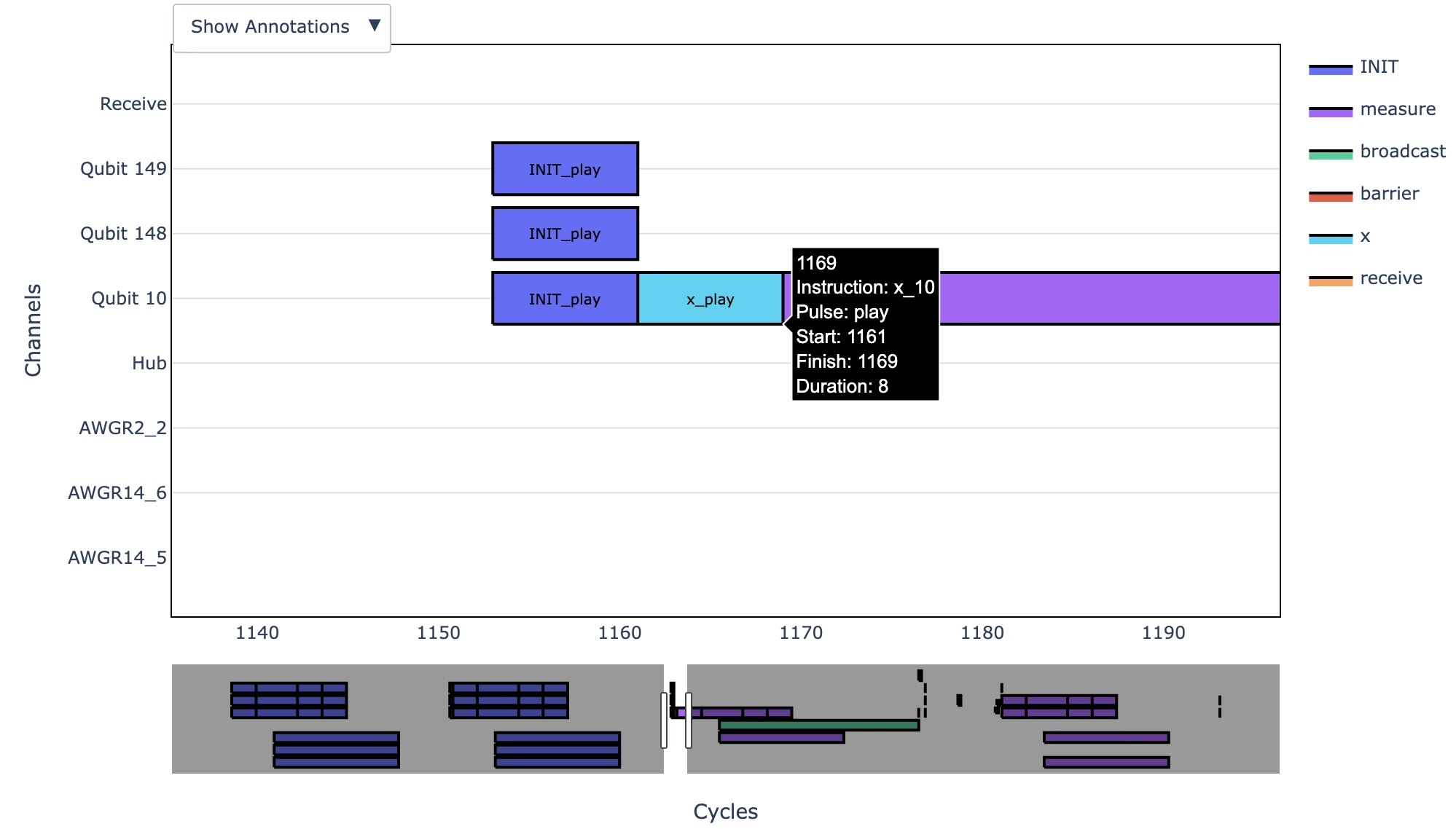
ทำความเข้าใจรูปภาพที่สร้างขึ้น
ภาพของ circuit timing data ที่ออกมาจาก draw_circuit_schedule_timing สื่อข้อมูลต่อไปนี้:
-
แกน X คือเวลาในหน่วยของ dt วินาที โดย 1 dt = 1 scheduling cycle คุณสามารถหาค่า
dtของ backend ได้โดยใช้backend.dt -
แกน Y คือ channel (คิดว่า channels เป็น instruments ที่ส่ง pulses)
-
Receive channel- Channel เดียวที่ไม่ใช่ instrument ด้วยตัวเอง เป็นคำสั่งที่รันบน channels ทั้งหมดที่เป็นส่วนหนึ่งของกระบวนการสื่อสารกับ hub ในเวลานั้น -
Qubit x- Drive channel สำหรับ qubit x -
AWGRx_y(arbitrary waveform generator readout) - ใช้โดย readout channels เพื่อสื่อสารเมื่อวัด qubits อาร์กิวเมนต์ x และ y สอดคล้องกับ readout instrument ID และหมายเลข qubit ตามลำดับ -
Hub- ควบคุม broadcasting
-
นอกจากนี้ แต่ละคำสั่งมีรูปแบบ X_Y โดย X คือชื่อของคำสั่งและ Y คือประเภท pulse ประเภท play ใช้ control pulses และ capture บันทึก state ของ qubit คุณยังสามารถ hover เหนือแต่ละคำสั่งเพื่อดูรายละเอียดเพิ่มเติม ตัวอย่างเช่น รูปก่อนหน้าแสดง control pulse สำหรับ X gate ที่ใช้กับ qubit 10 ที่ 1161 dt
ตัวอย่าง end-to-end
ตัวอย่างนี้แสดงวิธีเปิดใช้งาน option รับข้อมูล circuit timing จาก metadata และแสดงเป็นภาพ
ขั้นแรก ตั้งค่า environment กำหนด circuits และแปลงเป็น ISA circuits และกำหนดและรัน jobs
from qiskit_ibm_runtime import SamplerV2, QiskitRuntimeService
from qiskit.circuit import QuantumCircuit, QuantumRegister, ClassicalRegister
from qiskit.transpiler import generate_preset_pass_manager

service = QiskitRuntimeService()
backend = service.least_busy(operational=True, simulator=False)

# Create a dynamic circuit

qubits = QuantumRegister(1)
clbits = ClassicalRegister(1)
qc = QuantumCircuit(qubits, clbits)
(q0,) = qubits
(c0,) = clbits

qc.h(q0)
qc.measure(q0, c0)
with qc.if_test((c0, 1)):
    qc.x(q0)
qc.measure(q0, c0)

# Convert to an ISA circuit for the given backend

pm = generate_preset_pass_manager(backend=backend, optimization_level=1)
isa_circuit = pm.run(qc)

# Generate samplers for backend targets
sampler = SamplerV2(backend)
sampler.options.experimental = {"execution": {"scheduler_timing": True}}

# Submit jobs
sampler_job = sampler.run([isa_circuit])
result = sampler_job.result()

print(
    f">>> {' Job ID:':<10}  {sampler_job.job_id()} ({sampler_job.status()})"
)
>>> Job ID: dab83qbvpcac73ddf510 (DONE)
จากนั้น ดึงข้อมูล circuit schedule timing:
# Get the circuit schedule timing
result[0].metadata["compilation"]["scheduler_timing"]["timing"]
'main,rz_0,Qubit 0,1393,0,shift_phase\nmain,sx_0,Qubit 0,1393,9,play\nmain,sx_0,Qubit 0,1397,0,shift_phase\nmain,rz_0,Qubit 0,1402,0,shift_phase\nmain,barrier,Qubit 0,1402,0,barrier\nmain,measure_0,Qubit 0,1402,64,play\nmain,measure_0,Qubit 0,1466,108,play\nmain,measure_0,AWGR0_0,1523,325,capture\nmain,measure_0,Qubit 0,1574,64,play\nmain,measure_0,Qubit 0,1638,64,play\nmain,barrier,Qubit 0,2049,0,barrier\nmain,broadcast,Hub,1523,526,broadcast\nmain,receive,Receive,2049,7,receive\nthen,x_0,Qubit 0,2064,9,play\nmain,barrier,Qubit 0,2082,0,barrier\nmain,measure_0,Qubit 0,2082,64,play\nmain,measure_0,Qubit 0,2146,108,play\nmain,measure_0,AWGR0_0,2203,325,capture\nmain,measure_0,Qubit 0,2254,64,play\nmain,measure_0,Qubit 0,2318,64,play\nmain,barrier,Qubit 0,2753,0,barrier\nmain,barrier,Qubit 0,2753,0,barrier\nmain,FINI_0,Qubit 0,2753,64,play\nmain,FINI_0,Qubit 0,2817,108,play\nmain,FINI_0,AWGR0_0,2874,325,capture\nmain,FINI_0,Qubit 0,2925,64,play\nmain,FINI_0,Qubit 0,2989,64,play\nmain,FINI_0,Qubit 0,3424,9,play\nmain,FINI_0,Qubit 0,3433,64,play\nmain,FINI_0,Qubit 0,3497,108,play\nmain,FINI_0,AWGR0_0,3554,325,capture\nmain,FINI_0,Qubit 0,3605,64,play\nmain,FINI_0,Qubit 0,3669,64,play\nmain,FINI_0,Qubit 0,4104,9,play\nmain,barrier,Qubit 0,4113,0,barrier\n'
สุดท้าย คุณสามารถแสดงภาพและบันทึก timing:
from qiskit_ibm_runtime.visualization import draw_circuit_schedule_timing

circuit_schedule = result[0].metadata["compilation"]["scheduler_timing"][
    "timing"
]
fig = draw_circuit_schedule_timing(
    circuit_schedule=circuit_schedule,
    included_channels=None,
    filter_readout_channels=False,
    filter_barriers=False,
    width=1000,
)

# Uncomment the following line to display the figure
# fig.show(renderer="notebook")

# Save to a file
# fig.write_html("scheduler_timing.html")
ขั้นตอนถัดไป
- Classical feedforward and control flow (dynamic circuits)
- แสดงภาพ circuits