แสดงผล circuit
เวอร์ชันแพ็กเกจ
โค้ดในหน้านี้พัฒนาโดยใช้ requirement ต่อไปนี้ แนะนำให้ใช้เวอร์ชันเหล่านี้หรือใหม่กว่า
qiskit[all]~=2.5.2
การได้เห็น Circuit ที่กำลังสร้างมักเป็นประโยชน์ ใช้ตัวเลือกต่อไปนี้เพื่อแสดงผล Qiskit circuit
# Added by doQumentation — required packages for this notebook
!pip install -q qiskit
from qiskit import QuantumCircuit
วาด quantum circuit
คลาส QuantumCircuit รองรับการวาด circuit ผ่านเมธอด draw() หรือโดยการ print circuit object โดยค่าเริ่มต้น ทั้งสองวิธีแสดงผลเป็น ASCII art ของแผนภาพ circuit
โปรดทราบว่า print คืนค่า None แต่มีผลข้างเคียงในการแสดงแผนภาพ ในขณะที่ QuantumCircuit.draw คืนแผนภาพโดยไม่มีผลข้างเคียง เนื่องจาก Jupyter notebook แสดงผลของบรรทัดสุดท้ายของแต่ละ cell ทั้งสองวิธีจึงดูเหมือนมีผลเหมือนกัน
# Build a quantum circuit
circuit = QuantumCircuit(3, 3)
circuit.x(1)
circuit.h(range(3))
circuit.cx(0, 1)
circuit.measure(range(3), range(3));
print(circuit)
┌───┐          ┌─┐
q_0: ┤ H ├───────■──┤M├───
     ├───┤┌───┐┌─┴─┐└╥┘┌─┐
q_1: ┤ X ├┤ H ├┤ X ├─╫─┤M├
     ├───┤└┬─┬┘└───┘ ║ └╥┘
q_2: ┤ H ├─┤M├───────╫──╫─
     └───┘ └╥┘       ║  ║
c: 3/═══════╩════════╩══╩═
            2        0  1
circuit.draw()
┌───┐          ┌─┐
q_0: ┤ H ├───────■──┤M├───
     ├───┤┌───┐┌─┴─┐└╥┘┌─┐
q_1: ┤ X ├┤ H ├┤ X ├─╫─┤M├
     ├───┤└┬─┬┘└───┘ ║ └╥┘
q_2: ┤ H ├─┤M├───────╫──╫─
     └───┘ └╥┘       ║  ║
c: 3/═══════╩════════╩══╩═
            2        0  1
renderer ทางเลือก
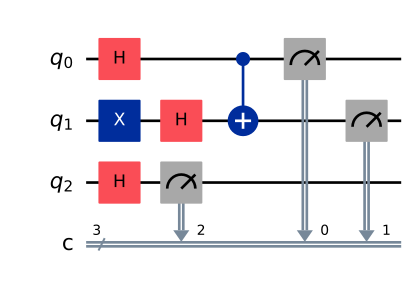
การแสดงผลแบบ text ช่วยให้ดูผลลัพธ์ได้อย่างรวดเร็วระหว่างการพัฒนา Circuit แต่ไม่ได้มีความยืดหยุ่นมากที่สุด มี renderer ทางเลือกสองตัวสำหรับ quantum circuit หนึ่งตัวใช้ Matplotlib และอีกตัวใช้ LaTeX renderer ของ LaTeX ต้องการ qcircuit package เลือก renderer เหล่านี้โดยตั้งค่า argument "output" เป็น string mpl และ latex
ผู้ใช้ OSX สามารถติดตั้งแพ็กเกจ LaTeX ที่จำเป็นผ่าน mactex package
# Matplotlib drawing
circuit.draw(output="mpl")
# Latex drawing
circuit.draw(output="latex")

บันทึก output
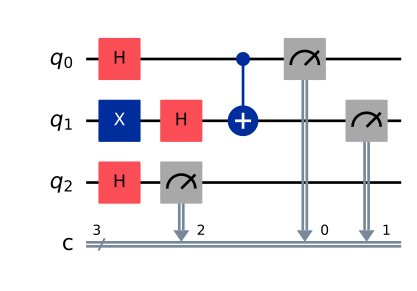
การวาด Circuit ขนาดใหญ่แบบ inline ใน Jupyter notebook อาจช้าหรืออ่านไม่ออก คุณสามารถบันทึกแผนภาพโดยตรงลงไฟล์ แล้วเปิดในโปรแกรมดูรูปภาพและซูมเข้าตามต้องการ
# Save as an image using the Matplotlib drawer
circuit.draw(output="mpl", filename="circuit-mpl.jpeg")
# Or save a LaTeX rendering
circuit.draw(output="latex", filename="circuit-latex.pdf")
ควบคุมการวาด circuit
โดยค่าเริ่มต้น เมธอด draw() จะคืนรูปภาพที่เรนเดอร์แล้วเป็น object และไม่แสดงผลอะไรออกมา คลาสที่คืนมาขึ้นอยู่กับ output ที่ระบุ: 'text' (ค่าเริ่มต้น) คืน object TextDrawer, 'mpl' คืน object matplotlib.Figure, และ latex คืน object PIL.Image Jupyter notebook เข้าใจประเภท return เหล่านี้และแสดงผลอย่างถูกต้อง แต่เมื่อรันนอก Jupyter รูปภาพจะไม่แสดงโดยอัตโนมัติ
เมธอด draw() มี argument ทางเลือกสำหรับแสดงหรือบันทึก output เมื่อระบุ kwarg filename จะรับ path ที่บันทึก output ที่แสดงผล หรือถ้าใช้ output mpl หรือ latex คุณสามารถใช้ kwarg interactive เพื่อเปิดรูปภาพในหน้าต่างใหม่ (วิธีนี้อาจไม่ได้ผลเสมอไปเมื่อรันภายใน notebook)
ปรับแต่ง output
ขึ้นอยู่กับ output ยังมี option สำหรับปรับแต่งแผนภาพ circuit
ปิดใช้ plot barrier และสลับลำดับ bit
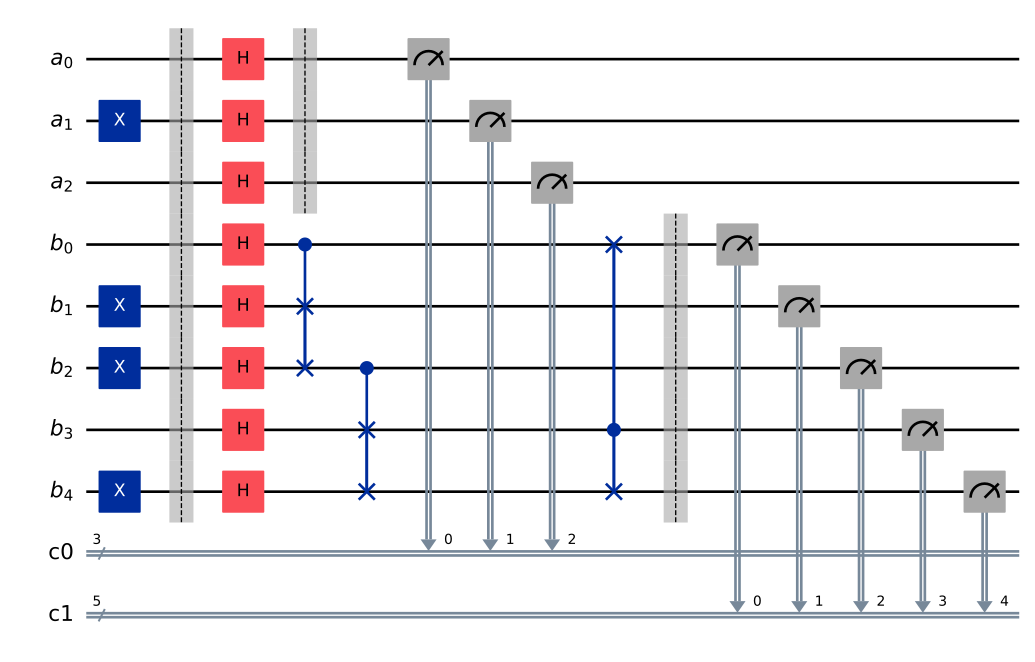
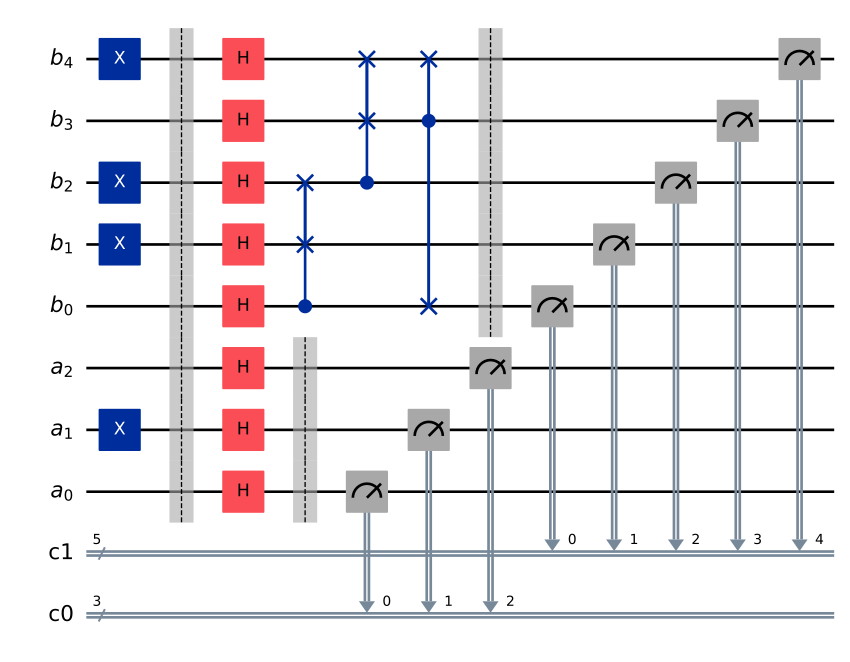
option สองตัวแรกใช้ร่วมกันได้กับทั้งสาม backend ช่วยให้กำหนดทั้งลำดับของ bit และกำหนดว่าจะวาด barrier หรือไม่ ตั้งค่าด้วย kwarg reverse_bits และ kwarg plot_barriers ตามลำดับ ตัวอย่างต่อไปนี้ใช้ได้กับ renderer ใดก็ได้ ใช้ mpl เพื่อความกระชับ
from qiskit import QuantumRegister, ClassicalRegister

# Draw a new circuit with barriers and more registers
q_a = QuantumRegister(3, name="a")
q_b = QuantumRegister(5, name="b")
c_a = ClassicalRegister(3)
c_b = ClassicalRegister(5)

circuit = QuantumCircuit(q_a, q_b, c_a, c_b)
circuit.x(q_a[1])
circuit.x(q_b[1])
circuit.x(q_b[2])
circuit.x(q_b[4])
circuit.barrier()
circuit.h(q_a)
circuit.barrier(q_a)
circuit.h(q_b)
circuit.cswap(q_b[0], q_b[1], q_b[2])
circuit.cswap(q_b[2], q_b[3], q_b[4])
circuit.cswap(q_b[3], q_b[4], q_b[0])
circuit.barrier(q_b)
circuit.measure(q_a, c_a)
circuit.measure(q_b, c_b);
# Draw the circuit
circuit.draw(output="mpl")
# Draw the circuit with reversed bit order
circuit.draw(output="mpl", reverse_bits=True)
# Draw the circuit without barriers
circuit.draw(output="mpl", plot_barriers=False)
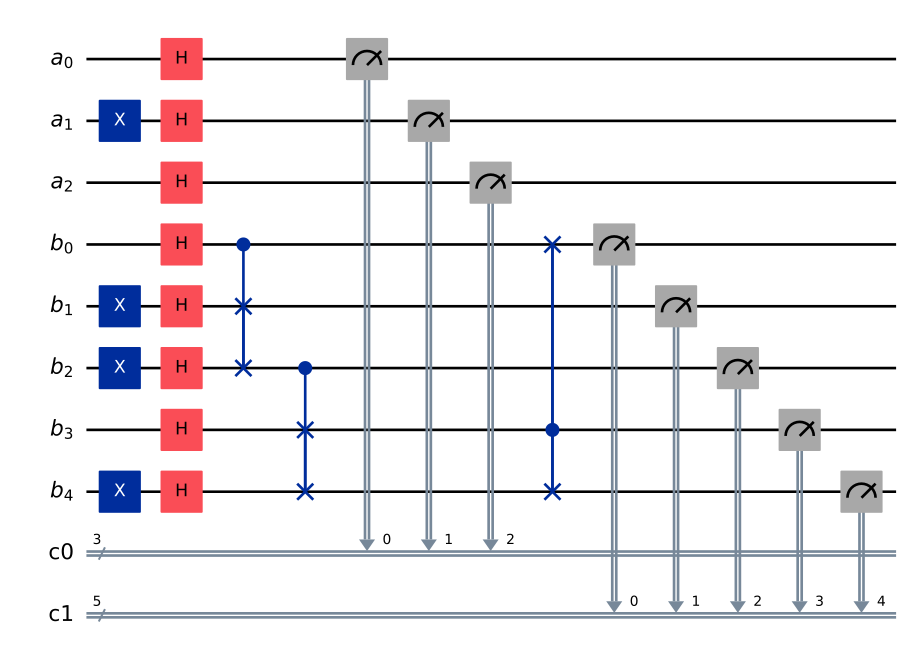
การปรับแต่งเฉพาะ renderer
option การปรับแต่งบางอย่างมีเฉพาะสำหรับ renderer นั้นๆ
argument fold กำหนดความกว้างสูงสุดของ output ใน renderer text จะกำหนดความยาวของบรรทัดในแผนภาพก่อนที่จะขึ้นบรรทัดใหม่ เมื่อใช้ renderer 'mpl' คือจำนวน layer (visual) ก่อนพับไปบรรทัดถัดไป
renderer mpl มี kwarg style ที่เปลี่ยนสีและเส้นขอบ ดูรายละเอียดเพิ่มเติมได้ที่ API documentation
option scale ปรับขนาด output ของ renderer mpl และ latex
circuit = QuantumCircuit(1)
for _ in range(10):
    circuit.h(0)
# limit line length to 40 characters
circuit.draw(output="text", fold=40)
┌───┐┌───┐┌───┐┌───┐┌───┐┌───┐┌───┐»
q: ┤ H ├┤ H ├┤ H ├┤ H ├┤ H ├┤ H ├┤ H ├»
   └───┘└───┘└───┘└───┘└───┘└───┘└───┘»
«   ┌───┐┌───┐┌───┐
«q: ┤ H ├┤ H ├┤ H ├
«   └───┘└───┘└───┘
# Change the background color in mpl

style = {"backgroundcolor": "lightgreen"}
circuit.draw(output="mpl", style=style)

# Scale the mpl output to 1/2 the normal size
circuit.draw(output="mpl", scale=0.5)

ฟังก์ชันวาด circuit แบบ standalone
ถ้ามีแอปพลิเคชันที่ต้องการวาด Circuit ด้วยฟังก์ชัน self-contained แทนที่จะเป็นเมธอดของ circuit object สามารถใช้ฟังก์ชัน circuit_drawer() โดยตรง ซึ่งเป็นส่วนหนึ่งของ public stable interface จาก qiskit.visualization ฟังก์ชันนี้ทำงานเหมือนกับเมธอด circuit.draw() ทุกประการ ยกเว้นต้องรับ circuit object เป็น argument ที่จำเป็น
from qiskit.visualization import circuit_drawer

circuit_drawer(circuit, output="mpl", plot_barriers=False)

ขั้นตอนถัดไป
- ดูตัวอย่างการแสดงผล circuit ใน tutorial Grover's Algorithm
- แสดงผล circuit อย่างง่ายโดยใช้ IBM Quantum Composer
- แสดงผล circuit timing
- ดู Qiskit visualizations API documentation